
 November 7, 2024
I was lucky enough to work on a project recently. They chose to use Redgate Flyway Enterprise instead of Redgate SQL Change Automation which was quite exciting. Their goal was to deploy database changes to Azure SQL where they had several different environments (dev, test, staging and production).
Redgate Flyway is available in three (3) editions, Community (free), Teams and Enterprise. When I first started using it, I thought it would be similar to Redgate SQL Change Automation. I had already developed YAML templates for that in the past. What I immediately noticed was that only one extension was available in the marketplace for Flyway, unfortunately it did not appear to be a very active project. I decided to checkout the resources available from Redgate for the product. They had a lot of great YAML pipeline examples for Azure Pipelines using Docker, Self-hosted Agents in GitHub which was fantastic.
One of the first tasks I completed was creating an installer YAML template for the Flyway CLI. We were using Microsoft-hosted Agents, which did not have any Flyway or SQL Fluff components. Unlike a Self-hosted Agent, these cannot not be installed manually. One thing you’ll notice right away is a variable groups is required to make this template work properly. I use a variable group named redgate-global-vars to put a few values I like to be able to change outside of my database project, those are:
- FLYWAY_LICENSE_KEY – This contains your license key, but if not we’ll just use the community edition. Comment out the environment variable used in the ‘Check Flyway Client’ step
- FLYWAY_VERSION – What version of Flyway you want to use with your database project (sometimes an issue with the latest release occurs due to breaking changes which may require you to update your scripts/templates)
- SQL_FLUFF_VERSION – What version of SQL Fluff do you want to deploy alongside Flyway
As part of the pipeline YAML template a check is performed to ensure the Flyway CLI loads properly and during that step the Flyway will let you know whether a more recent version is available
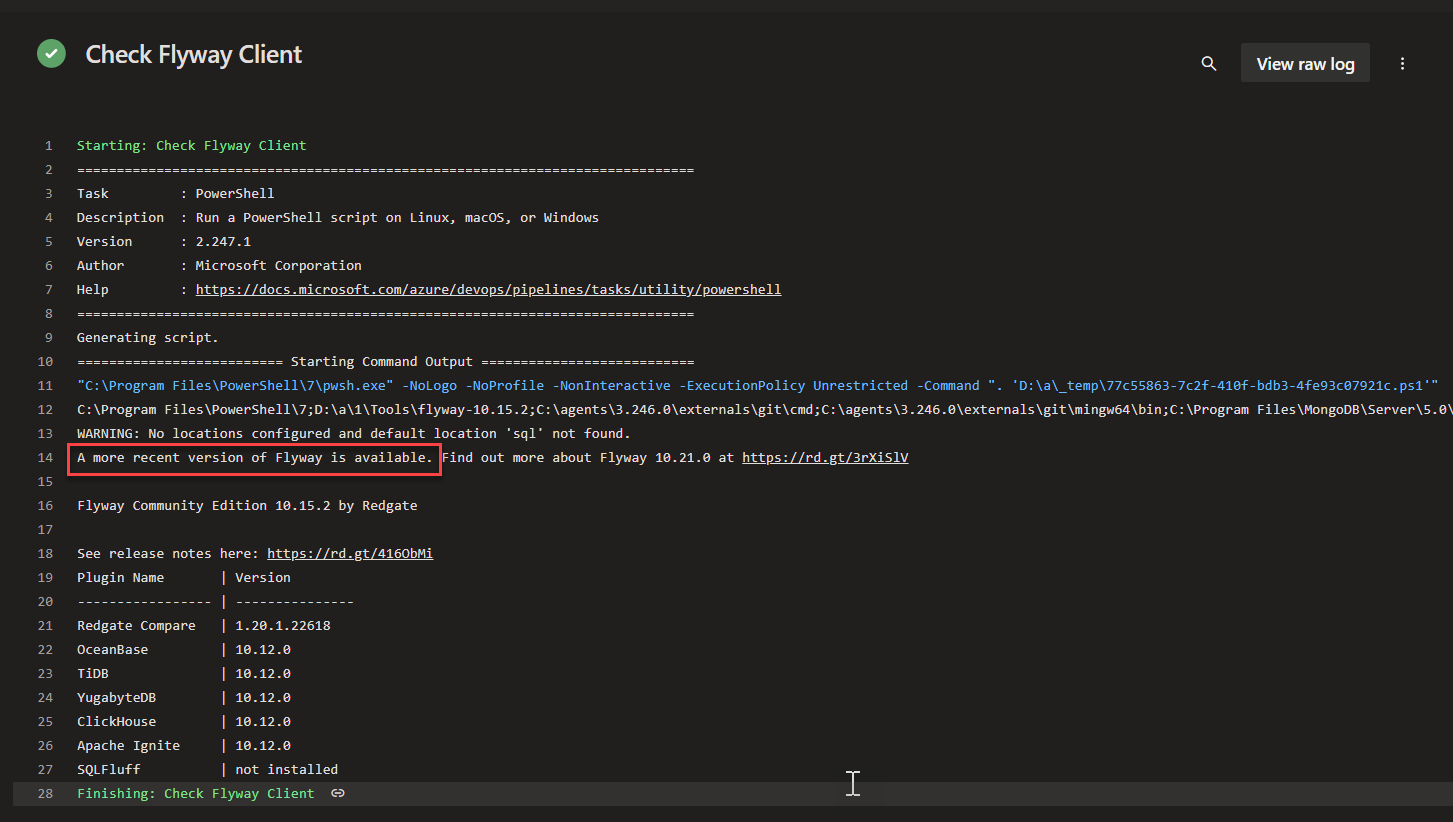
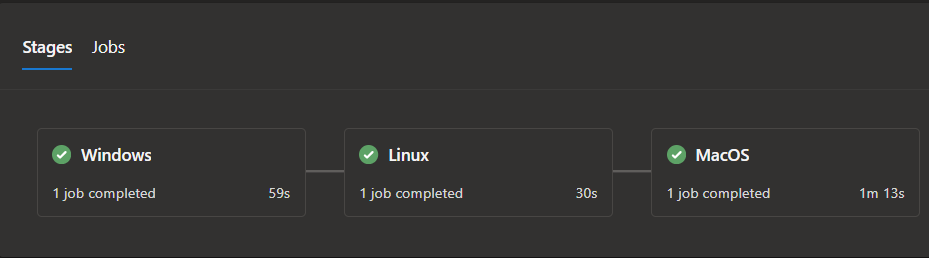
The YAML template has been tested using the following Microsoft-hosted images without any issues
- windows-latest
- ubuntu-latest
- macos-latest
Here is the complete YAML template InstallFlyway.yml in case you decide to use it in your environment
parameters:
- name: flywayversion
  type: string
  default: '9.21.1'
- name: edition
  type: string
  default: community
  values:
    - community
    - teams
- name: sqlfluffversion
  type: string
  default: '3.0.7'

steps:
- task: PowerShell@2
  displayName: 'Download and unzip Flyway command line'
  env:
    FLYWAY_LICENSE_KEY: $(FLYWAY_LICENSE_KEY)
    FLYWAY_VERSION: ${{ parameters.flywayversion }}
    FLYWAY_EDITION: ${{ parameters.edition }}
  inputs:
    targetType: 'inline'
    script: |
      # Write your PowerShell commands here.
      $version = $env:FLYWAY_VERSION
      $edition = $env:FLYWAY_EDITION
      $extension = $IsWindows ? 'zip' : 'tar.gz'
      if ($IsWindows) {$platform = 'windows'}`
      elseif ($IsMacOS) {$platform = 'macosx'}`
      elseif ($IsLinux) {$platform = 'linux'}
      Write-Host "Hello Flyway $edition, getting Version $version for $platform"
      $flywayZip = "https://download.red-gate.com/maven/release/org/flywaydb/enterprise/flyway-commandline/$version/flyway-commandline-$version-$platform-x64.$extension"
      $targetZip = "flyway-commandline-$version-$platform-x64.$extension"
      $flyway = "flyway-$version"
      $flywayPath = Join-Path (Get-Location).ToString() -ChildPath "\Tools\$flyway"
      mkdir ./Tools
      # Remove-Item .\Tools -Force -Recurse -ErrorAction Ignore
      Invoke-WebRequest $flywayZip -OutFile $targetZip
      if ($IsWindows)
      {
        Expand-Archive -LiteralPath $targetZip -DestinationPath ./Tools
      }
      else
      {
        tar -xvf $targetZip -C ./Tools
        chmod +x $flywayPath/flyway
      }
      write-host "##vso[task.prependpath]$flywayPath"
    pwsh: true
    workingDirectory: '$(Pipeline.Workspace)'

- script: |
    python -m pip install --upgrade pip
    pip install sqlfluff==${{ parameters.sqlfluffversion }}
  displayName: 'Install SQL Fluff'
  failOnStderr: true

- task: PowerShell@2
  displayName: 'Check Flyway Client'
  continueOnError: true
  env:
    FLYWAY_LICENSE_KEY: $(FLYWAY_LICENSE_KEY) # FLYWAY will throw an error if blank
    FLYWAY_EDITION: ${{ parameters.edition }}
  inputs:
   targetType: 'inline'
   script: |
     write-host "$($env:PATH)"
     flyway -v
   pwsh: true
   failOnStderr: false
Here is an example of the template above being used for a simple pipeline with a stage for each of the vmImage types: windows-latest, ubuntu-latest and macos-latest

If you have any comments or suggestions please feel free to leave them below. According to AI my sentences are too long 😒


 Azure DevOps and Visual Studio Awesomeness
No comments yet... Be the first to leave a reply!